

Google Slides
Google LLC
I use Google Slides when I need to build or adjust a presentation without sitting at my desk. It is a productivity app from Google LLC, and its main appeal is straightforward: a presentation that starts on one device can be opened and edited from another, provided the account and file access are set up correctly. That sounds simple, but many frustrations with presentation apps happen before the first slide is changed.
My experience is that Slides works best when I treat it as a practical companion to the desktop version rather than a complete replacement for every presentation task. It is free, suitable for everyone, and available for devices running Android 8.0 or later. The current version is 1.26.091.02.90, and its long presence on mobile helps explain why it feels familiar to many users. With a 4.1 average from around 652 thousand ratings and more than a billion installs, it is clearly a common choice, but popularity does not remove the need to understand its limits.
Where presentation work usually gets stuck
The first obstacle is often not editing at all. A user opens the app expecting to see a presentation, but the file is missing, appears under a different account, or opens in a state that does not allow changes. I have found that checking the account shown in the app is more useful than repeatedly tapping the file. A presentation shared with one Google account will not necessarily appear when another account is active on the device.
Related News

File location can also be confusing. Slides can be opened from the app’s own file view, but people may also reach presentations through Google Drive or a shared file invitation. If the file was recently created, renamed, or shared, the most sensible first step is to return to the file list and refresh it rather than assuming the presentation has disappeared. A slow connection can make a normal delay look like a missing document.
Editing on a phone introduces a different kind of friction. Selecting a small text box, moving an object, or placing the cursor between two words is less precise than using a mouse. I prefer making wording changes and quick corrections on a phone, while leaving detailed alignment and dense slide design for a larger screen. The app is capable of useful mobile editing, but the size of the display affects how confidently I can work.
Latest News

Uber Eats Under Pressure: What Happens When Delivery Goes Wrong

How QR & Barcode Scanner Adapts to Android and iOS Innovations

Why Waze Navigation & Live Traffic Is Your Essential Travel Companion
CapCut Mastery: Unleash Hidden Features for Pro-Level Editing

How OS Updates Enhance Roblox Adventures
Teacher Simulator: Exam Time Turns Quick Classroom Judgments into a Repetitive Loop
Another common sticking point is confusing viewing access with editing access. If a presentation opens but the editing controls are unavailable, the issue may be the sharing role assigned to that file. In that situation, reinstalling the app will not solve the problem. The owner or manager of the presentation needs to change access, or the user needs to work from a copy when that option is available.
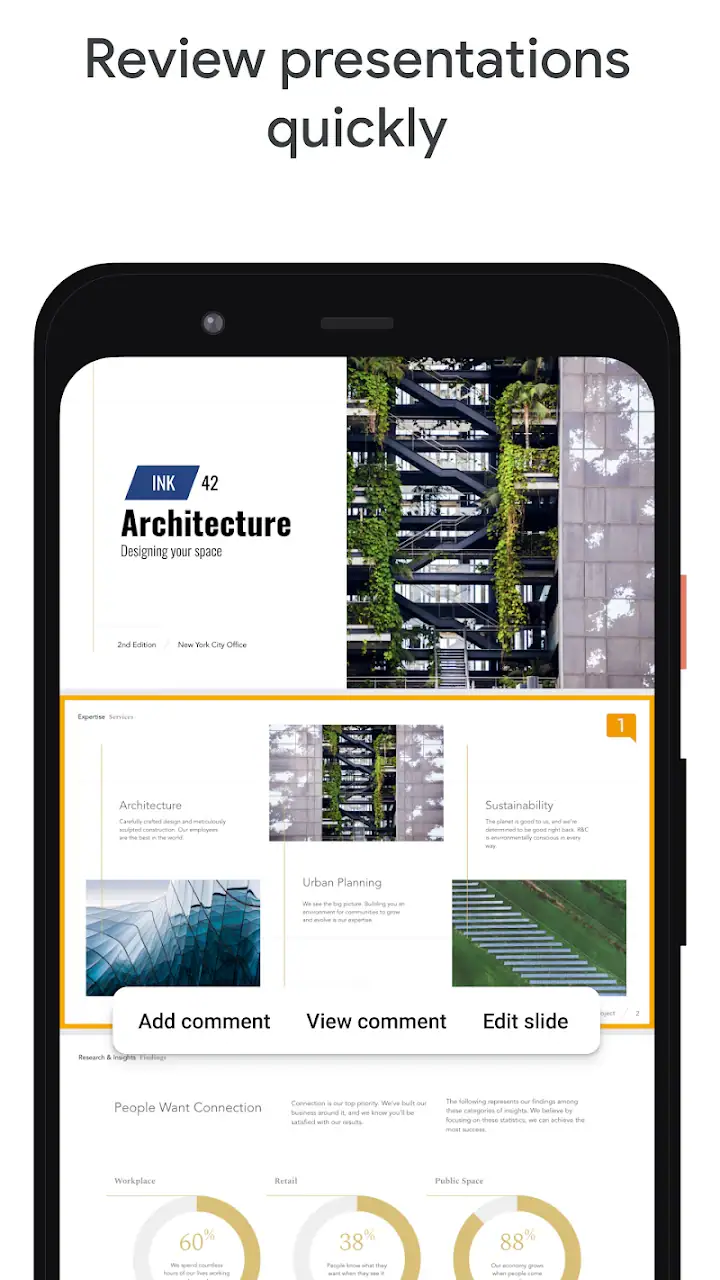
Presentations with many visual elements can also feel harder to manage on a small screen. A slide may look acceptable at a glance but reveal crowded text, overlapping objects, or awkward spacing when reviewed carefully. I recommend zooming in before making precise changes and then zooming back out to judge the slide as a whole. Mobile editing rewards small, deliberate adjustments instead of fast dragging.
What I check before blaming the app
When a presentation will not open, I first separate an app problem from a file problem. I try another presentation if one is available. If other files open normally, the trouble may belong to the original document, its sharing settings, or its connection to cloud storage. If nothing loads, I check the internet connection and whether the correct account is active before taking more drastic steps.
Gallery
I also look at whether the device has enough free space for ordinary system activity. I do not treat storage as a guaranteed explanation, but a nearly full device can make many apps behave poorly. Closing Slides and opening it again is a reasonable first move. If the issue continues, restarting the device can clear a temporary system problem without risking the presentation itself.
It is worth distinguishing an unsaved-looking screen from actual lost work. Cloud-based editing may take a moment to synchronize, especially when the connection changes. I avoid immediately closing the app after making a substantial edit. Instead, I wait briefly, return to the file list, and check whether the latest version is visible there. This simple pause has prevented me from mistaking synchronization delay for data loss.
Setup checks that make mobile editing smoother
My preferred setup begins with the right account already signed in. If I use more than one Google account, I check the account selector before searching for a file. This is particularly important for work or school presentations, where access may be connected to a managed account rather than a personal one.
I then open a presentation while connected to a reliable network and confirm that the expected slides, images, and text are present. This is a better preparation step than waiting until a meeting begins. A presentation that opens successfully at home may still need a moment to load after a connection changes, so I like to inspect the file before leaving for an appointment.
For a presentation I need to update during travel, I prepare a fallback. I keep the original file untouched until I know the revised version is synchronized, and I avoid making a series of major changes while the connection is unstable. When the work matters, a second copy or an exported version held elsewhere can provide reassurance, although the exact options available depend on the file and account.
Notifications and shared editing can create their own distractions. If several people are working on one presentation, I try to agree on who is changing which slides. Mobile editing is convenient for quick collaboration, but simultaneous changes to the same text box or object can make it difficult to understand which version is current. Clear ownership of sections is often more effective than trying to repair overlapping edits later.
A useful preparation habit is to review the presentation in two passes. In the first pass, I check the message of each slide: title, key point, and supporting material. In the second, I inspect visual details such as line breaks, image placement, and text size. The phone is good for catching wording problems and making small corrections, but I would not rely on it alone for judging how a complex presentation will look on a projector or large monitor.
Small workflows that save time
For quick revisions, I open the presentation, find the relevant slide, and change one type of content at a time. I might correct the title first, then review body text, and only afterward adjust objects. This reduces accidental movement and makes it easier to notice whether the edit has synchronized.
I also use the slide list as a navigation tool rather than swiping through every page. In a long presentation, jumping directly to the slide that needs attention is less tiring and lowers the chance of editing the wrong page. Before sharing a revised file, I return to the slide overview and scan the sequence. A locally correct slide can still be in the wrong position in the overall story.
When I am preparing speaker notes or reminders, I keep the wording short. A phone is not the ideal place to compose a long script, but it is useful for adding a prompt, correcting a name, or making a last-minute clarification. For substantial writing, I prefer drafting elsewhere and using Slides for placement and final review.
One trade-off I notice is that convenience can encourage over-editing. Because a presentation is always within reach, it is tempting to make changes moments before presenting. I try to set a stopping point: after the final edit, I check the file, confirm the order of slides, and avoid unnecessary design changes. A stable, readable presentation is usually better than a more ambitious one that has not been reviewed.
Recovering when a workflow breaks
If a presentation stops responding, I first leave the current screen only after allowing a short moment for the app to finish its operation. If the interface remains stuck, closing and reopening Slides is a sensible recovery step. I then check the file list and the presentation itself before repeating the edit. Repeating the same action immediately can make it harder to tell whether the first attempt worked.
When a file opens but a recent change is not visible, I check whether I am viewing the same account and document as before. I also look for signs that the file is still synchronizing. If the change was important, I make a small, harmless check in the document rather than adding more substantial edits. The goal is to establish which version is current before continuing.
For a presentation that consistently causes trouble, I test another file and, if possible, open the same document through another supported route. This comparison helps identify whether the issue follows the file or stays with the app on the device. If only one presentation behaves badly, its contents, access settings, or recent changes deserve attention. If every presentation behaves badly, the device, connection, account, or app installation becomes more likely.
Reinstalling should not be my first response to a single loading problem. It may remove temporary local state, but it does not repair incorrect sharing permissions or a network outage. Before considering it, I make sure important work has synchronized and that I can sign back into the correct account. A recovery step that creates a new sign-in problem is not much of a recovery.
For collaborative work, I also ask whether another editor has changed the file. A presentation can appear different because someone else updated it, not because an earlier edit vanished. Reviewing the document’s current state and communicating with collaborators is often safer than creating several competing copies without a plan.
A realistic everyday example
Imagine I am leaving for a meeting and notice that one slide contains an outdated sentence. I open Slides on my phone, select the presentation, confirm the account, and make the wording correction. Before closing the app, I wait for the file to settle and reopen the presentation from the list. I then scan the slide order and check the corrected page again.
If the file does not appear, I do not immediately assume it was deleted. I check the account and connection first. If it opens but the text cannot be changed, I treat that as an access issue. If the text changes but the presentation later shows the old wording, I investigate synchronization or whether I edited a different copy. This sequence is simple, but it prevents several common mistakes.
For a last-minute correction, that workflow is exactly where the app earns its place. I would not use the same approach to redesign every slide in a large presentation while walking between appointments. The phone version is strongest when the task is specific, the file is already organized, and the user has enough time to verify the result.
When the app is not the cause
Not every presentation problem belongs to Google Slides. A file may be difficult to edit because its owner has limited permissions. A missing image may be connected to the way the presentation was assembled. A slow opening process may reflect a weak connection or a busy device. Treating every symptom as an application failure leads to unnecessary resets and repeated work.
Account confusion is particularly easy to overlook. I have seen people search repeatedly for a shared presentation while the wrong profile was active. The app can only show the files available to the current account, so checking the profile is one of the highest-value troubleshooting steps.
There is also a difference between a presentation being available and it being ready for a particular screen. A slide that looks fine on a phone may not be comfortable to read from a distance. If the final audience will see a large display, I prefer to review the presentation on a larger screen before presenting. Slides helps me edit the content, but it cannot make a small screen a substitute for every presentation environment.
Compared with a traditional office suite, Slides feels lighter and more convenient for shared, cloud-based work. Its advantage is not that it offers the deepest design controls in every situation; it is that opening a familiar presentation and making a practical change is usually uncomplicated once access is correct. A desktop presentation program may be better for elaborate layouts, highly controlled typography, or extensive offline production.
Compared with simpler note or document apps, Slides is the better fit when information must be arranged as separate visual pages. A document is often faster for drafting a long report, while Slides is more useful when the order, spacing, and visual emphasis of each page matter. I would not choose it as my main writing environment for a long essay, but I do choose it when the end result needs to be presented slide by slide.
The app is also not the right choice for someone who wants a completely isolated, local workflow with no account-based sharing or cloud-centered organization. Its usefulness comes from working with presentations in the Google Workspace environment. Users who prefer to keep every file strictly local may find a conventional offline editor more comfortable, depending on their needs.
My practical verdict after using it
I recommend Google Slides for students, teachers, small teams, and anyone who regularly needs to review or correct presentations away from a computer. It is especially useful when the presentation already exists and the task is focused: fix a heading, update a figure, reorder a slide, check notes, or review a shared file before a meeting.
I would be more cautious about recommending it as the only tool for complex presentation design. Fine positioning on a phone can be slow, and a crowded slide is harder to judge accurately on a small display. For that kind of work, I prefer creating the structure on a larger screen and using the mobile app for review and targeted changes.
The most important practical lesson is to check the account, access level, connection, and synchronization state before assuming the app has failed. Those checks answer many of the questions a new user is likely to have: why a file is missing, why editing is unavailable, why a change seems delayed, and whether reinstalling is necessary. In my experience, patience during synchronization and a clear file workflow matter as much as the editing controls.
Google LLC has made a free productivity tool that is easy to justify if presentations are part of your routine. Its broad availability, Everyone age rating, and enormous install base make it approachable, while its real value appears in ordinary moments rather than flashy ones: correcting a slide before class, reviewing a shared deck on the train, or checking the order of pages before a meeting. I would skip it only if I need advanced desktop-level design as my main workflow or want to avoid cloud-centered collaboration altogether.
For everyone else, I think it is worth keeping installed. Use it for mobile access, quick edits, and dependable review; use a larger screen when precision and presentation quality matter most. That balance gives me the convenience of working anywhere without pretending that a phone is the ideal tool for every part of presentation creation.
FAQs for Google Slides
What is Google Slides, and how does it work?
Google Slides is a free, web-based presentation software developed by Google. It allows users to create, edit, and collaborate on presentations online, accessible from any device with an internet connection. It integrates seamlessly with Google Drive, enabling easy sharing and real-time collaboration with others.
Can I use Google Slides offline?
Yes, Google Slides can be used offline, but you'll need to set it up first. To do this, install the Google Docs Offline extension for Chrome. Once enabled, you can access and edit your presentations without an internet connection. Changes will sync automatically once you're back online.
Is Google Slides compatible with Microsoft PowerPoint?
Google Slides is compatible with Microsoft PowerPoint. You can easily import PowerPoint files into Google Slides for editing. Additionally, presentations created in Google Slides can be downloaded as PowerPoint files, maintaining most formatting and features for seamless cross-platform use.
What are the main features of Google Slides?
Google Slides offers a range of features, including customizable templates, slide transitions, animations, and collaborative tools. Users can add images, videos, and charts, and access a library of fonts and themes. The real-time collaboration feature allows multiple users to work on a presentation simultaneously.
Is Google Slides free to use?
Yes, Google Slides is free to use with a Google account. It offers all its basic features without any cost. For additional features and storage, users can opt for a Google Workspace subscription, which provides enhanced security, administrative controls, and more storage.
Pros
- Seamless integration with Google Drive.
- Real-time collaboration with others.
- Wide range of templates available.
- Accessible on multiple devices.
- Offline editing capabilities.
Cons
- Limited advanced design features.
- Requires internet for full functionality.
- Export options can be limited.
- Occasional formatting issues.
- Dependent on Google account access.


